Your laptop used to last 8 hours. Now it barely makes it to lunch. Something changed — but is it the battery, or just your habits?
Here's how to find out in under two minutes.
Windows: the hidden battery report
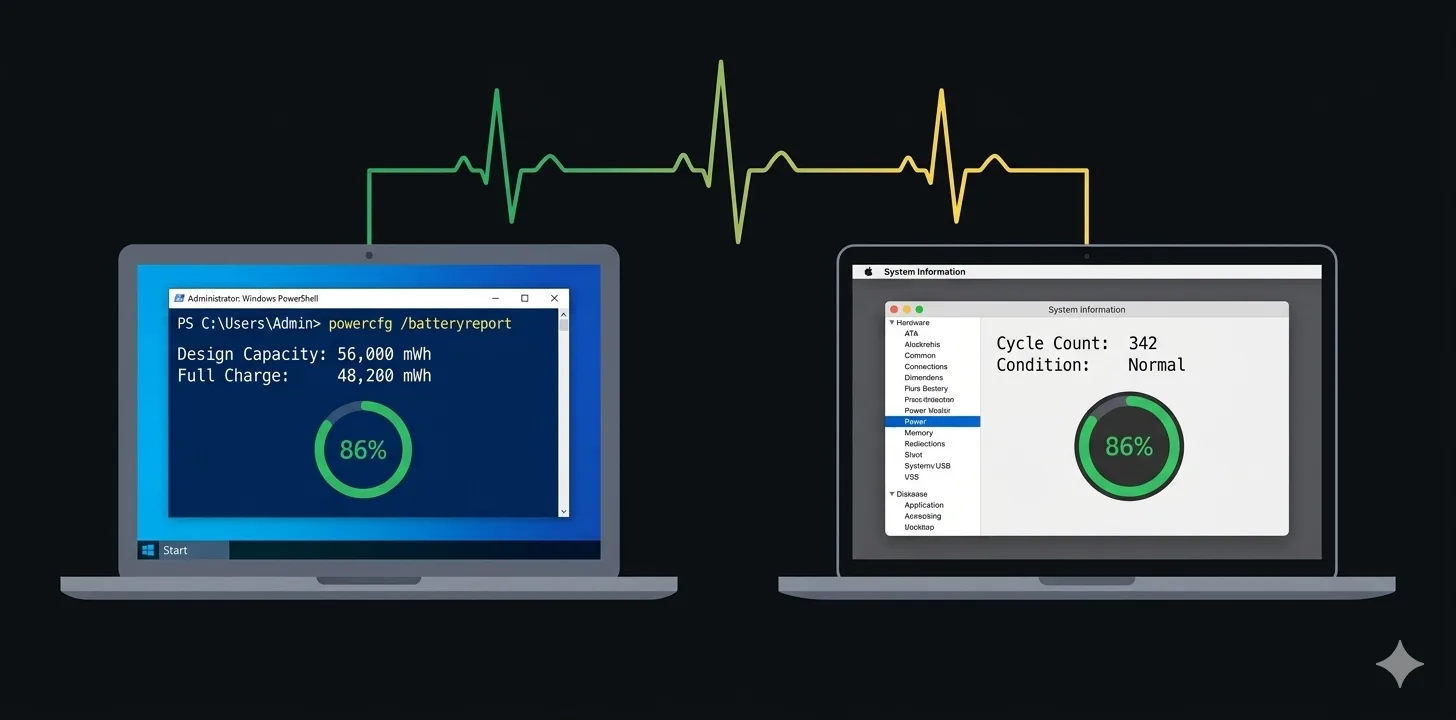
Windows has a built-in battery report that most people never find. Open a terminal and run:
powercfg /batteryreport
This creates an HTML file (usually at C:\Users\YourName\battery-report.html). Open it in a browser. (Full documentation on Microsoft Learn) The two numbers that matter:
- Design capacity — what the battery was rated for when new
- Full charge capacity — what it can actually hold now
If full charge is below 80% of design capacity, your battery is significantly worn. Below 60%, consider replacing it.
The report also shows cycle count — how many full charge-discharge cycles the battery has been through. Most laptop batteries are rated for 300-500 cycles before noticeable degradation.
macOS: System Information
Click the Apple menu → About This Mac → More Info → System Report → Power.
Look for:
- Cycle Count — under 1000 is generally fine for modern MacBooks
- Condition — "Normal" is good, "Service Recommended" means it's time
- Maximum Capacity — shown as a percentage of original
Apple considers a battery "consumed" when maximum capacity drops below 80%. (Apple Support — Battery cycle count)
The easier way
Both methods above give you a snapshot. If you want to track battery health over time — capacity trends, temperature, power draw, cycle count — Battery Notifier has a built-in health dashboard that shows all of this in one place.
No terminal commands. No digging through system menus. Just open the app and look.
When to actually worry
- Below 80% capacity — noticeable shorter runtime, worth monitoring closely
- Below 60% capacity — battery replacement is a good idea
- High cycle count (500+ on Windows, 1000+ on Mac) — normal wear, not a defect
- Battery swelling — stop using immediately, get it replaced