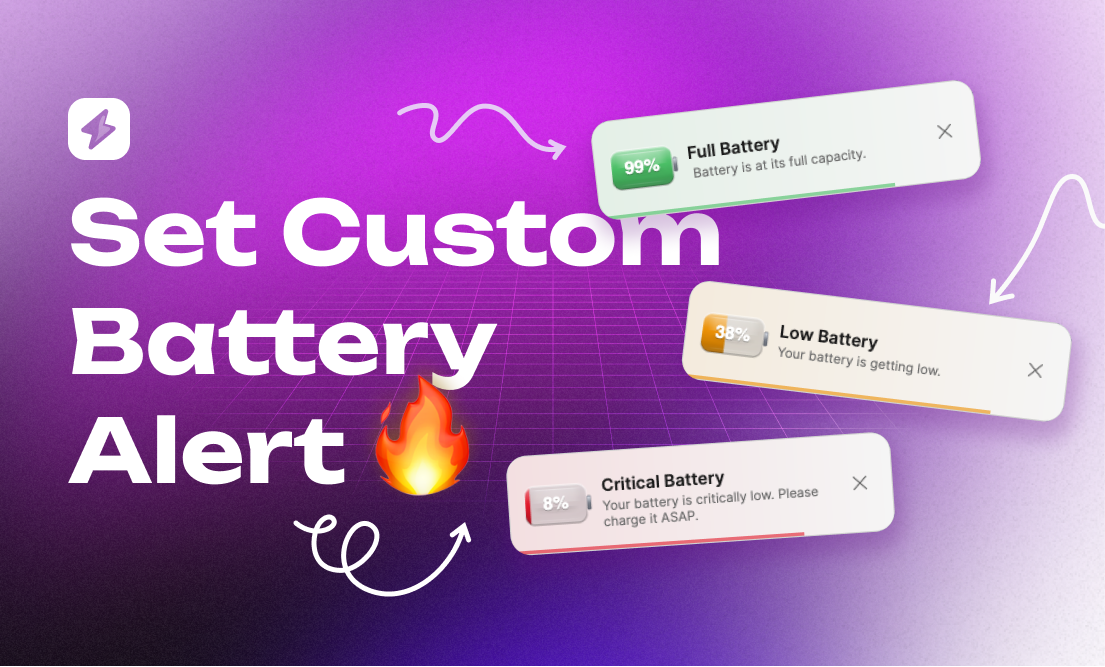
Every laptop warns you when the battery is nearly empty. None of them tell you when it is done charging.
That is a strange gap. The moment you actually want to act on — unplugging around 80% — is the one moment no operating system mentions.
What each OS gives you
macOS warns you at 20%, then again at 10%. That is the whole system. Apple's documentation covers the limits. You cannot move the thresholds or change the sound.
Windows is slightly better. You can change the low and critical battery levels, but they are buried in Control Panel → Power Options → advanced settings, and most people never find them. There is still no full charge alert.
Linux depends on your desktop. GNOME and KDE both warn somewhere around 10%, and you can edit the thresholds in UPower config if you are comfortable in a text file. Again, nothing when the battery fills up.
Three different systems, same two gaps:
- No alert when the battery is full
- No easy way to pick your own numbers or sound
What I did about it
I built Battery Notifier to close both gaps, and made it run the same way on all three platforms.
Download it from the download page. Pick your OS, no account needed.
Set your thresholds. Low at 25%, full at 80%, or whatever fits how you work.
Pick a sound. Ten synthesized tones, four curated clips, or import your own audio file.
That is it. It stays quiet until one of your numbers is hit.
It lives in the menu bar on macOS and the system tray on Windows and Linux.
Do not disturb
This is where most notification apps fall apart. Focus Mode on macOS, Focus Assist on Windows, Do Not Disturb on Linux — the alert gets swallowed, and you find out about the battery when the screen goes dark in a meeting.
Battery Notifier respects those modes for normal alerts but still gets through when the battery is genuinely about to die. Quiet while you work, loud when it matters.
Do you need this?
If you work at a desk most of the day, the full charge alert is the useful one. It lets you follow the 80% rule without thinking about it.
If you move around a lot, set the low alert at 25-30%. That is enough runway to find a charger calmly, instead of the scramble that starts at 10%.